SVG Image Detail
SVG artwork stores curves and lines. HyperTheme turns those shapes into pixels for display. Increase Image detail when an enlarged SVG looks soft, without changing the layer's size, position or animation.
Change SVG detail
- Upload your SVG through the Library and add the image to your theme.
- Select the image layer in Layers. Select the layer itself, rather than an animation bar.
- Stop playback and return the playhead to the start.
- Find Image detail in the right properties panel. Scroll down if needed.
- Choose Automatic, 1×, 2×, 4× or 8× under SVG rasterization.
- Check the artwork at your intended display size, then save your theme.
Start with Automatic. Try 4× or 8× if curves or fine lines look soft after enlargement. Choose the lowest setting which gives the result you need. Higher settings use more memory.
The choice is saved with the layer and restored when you reopen the theme. Undo and Redo also restore the choice. Image detail is a static setting, separate from scale animation. The controls work the same way on Windows and Linux.
Compare the same SVG
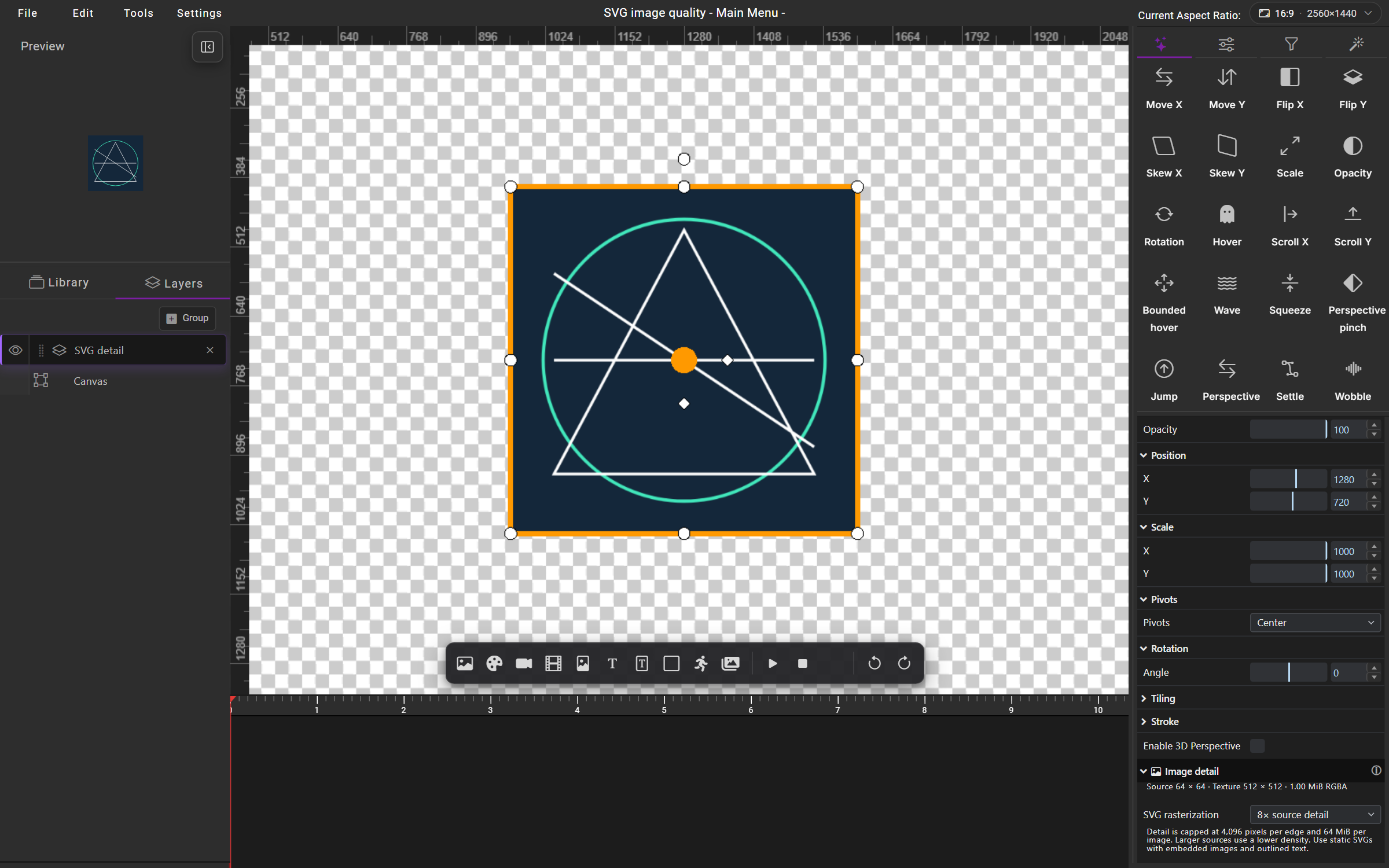
These full Builder screenshots use the same 64 × 64 SVG. The layer is enlarged to 1000%, and the editor view is zoomed in. Layer size, position and zoom stay the same between captures. Only Image detail changes.
8× source detail
The circle and diagonal lines retain more detail. HyperTheme generates a 512 × 512 texture from the 64 × 64 source.
1× source detail
The texture stays at 64 × 64 pixels. Enlarging those pixels makes the circle and lines look soft. This is an explicit 1× comparison, rather than Automatic.
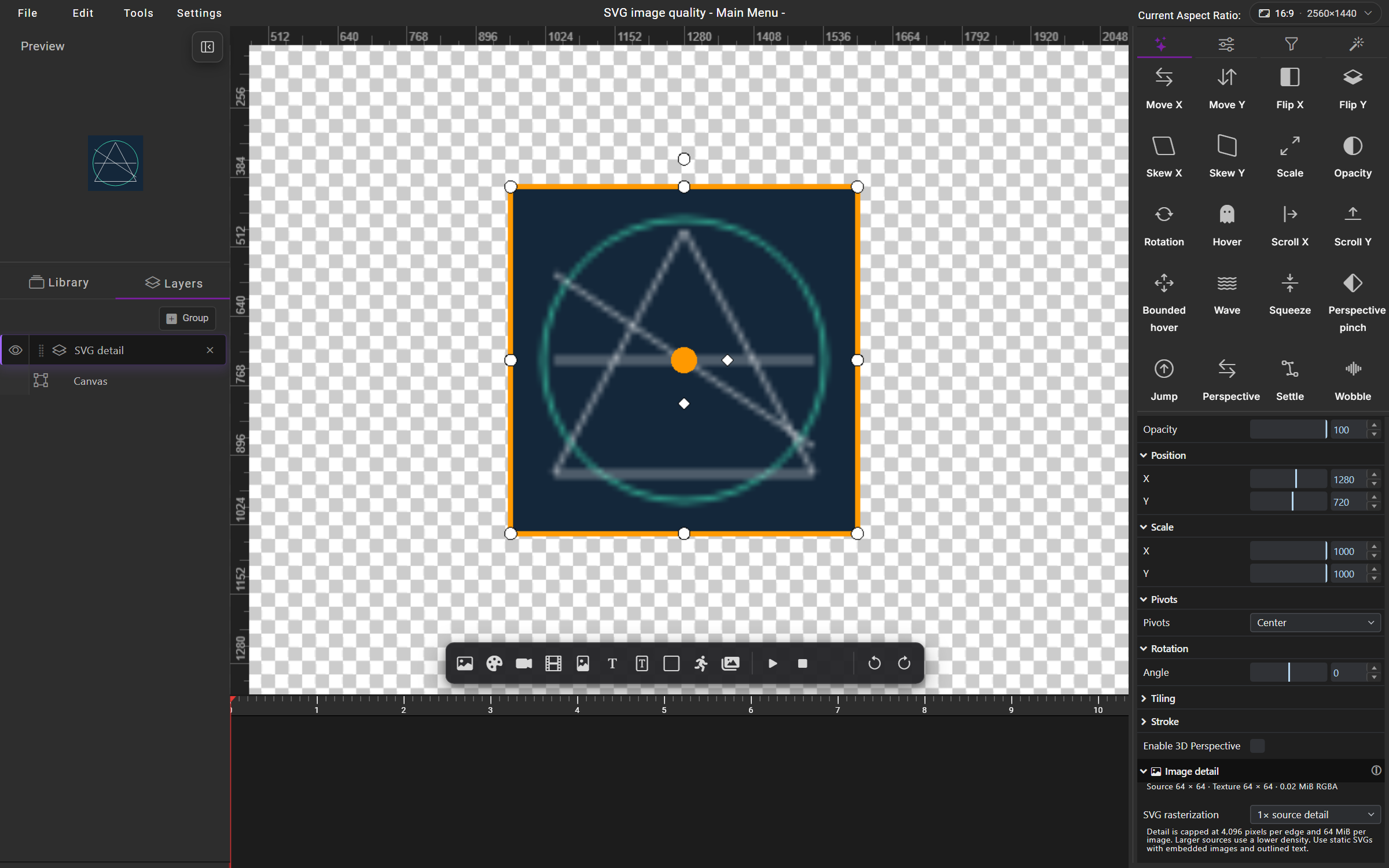
Select either screenshot to open the full-resolution image. The orange border, orange dot and white handles belong to the selected layer's editing controls.
Download the example SVG to follow these steps with the same artwork. Open the link and save the SVG file, then upload through the Library.
Read the dimensions and memory estimate
| Label | Meaning |
|---|---|
| Source | The original SVG dimensions. The example starts at 64 × 64. |
| Texture | The generated pixel dimensions used for display. At 8×, the example becomes 512 × 512. |
| MiB RGBA | Estimated memory for the texture's pixels. This excludes other graphics memory and processing overhead. |
For this example, 1× uses 16 KiB of pixel memory, shown as 0.02 MiB. The 8× texture uses 1.00 MiB. Increasing both dimensions by eight uses 64 times as many pixels.
Automatic preserves compatible sizing for existing themes. Its generated texture size depends on the source and saved layer dimensions. Changing Image detail leaves layer geometry unchanged.
Prepare your artwork
- Use a static, self-contained SVG, with a source file no larger than 4 MiB.
- Embed any raster images and convert text to outlines for consistent lettering across computers.
- Remove scripts, animation elements, external links and external font dependencies.
- Keep higher detail for artwork which needs enlargement. Generated textures are limited to 4,096 pixels per edge, or a lower device limit, and 64 MiB of pixel memory per image.
The panel reports when a requested detail level is reduced to fit the texture limits. Generated SVG textures also share a 256 MiB pixel-memory budget per scene. If an image fails to load at a new setting, the previous image and setting stay in place. Reduce detail or simplify the source before trying again.
PNG, JPEG and other bitmap images already contain a fixed number of pixels. Image detail does not reconstruct missing detail in those formats. Replace a soft bitmap with a higher-resolution original. Video quality is unchanged.
For layer size and position, see Transformations. For uploads, see Assets & Library.