Layer blend modes
Blend modes change how a layer combines with the artwork below. Use Add for a strong glow, Multiply for darkening, or Screen for a lighter overlay. Normal keeps standard transparency.
Choose a blend mode
- Select an image, video, metadata image, or group in the Layers tab.
- Find Blend mode in the Properties panel on the right, above Opacity.
- Select Normal, Add (glow), Multiply (darken), or Screen (lighten).
- Review the canvas. Changes appear immediately.
Keep the selected layer above the artwork you want to affect. Changing the layer order changes the result. Adjust Opacity to reduce the strength of an overlay.
| Choice | Result | Example use |
|---|---|---|
| Normal | Places the layer over the background using its transparency | Regular artwork and video |
| Add (glow) | Adds light to the layers below | Lights, sparks, and bright overlays |
| Multiply (darken) | Darkens the layers below | Shadows and shaded overlays |
| Screen (lighten) | Lightens the layers below | Soft lights and highlights |
Compare the four modes
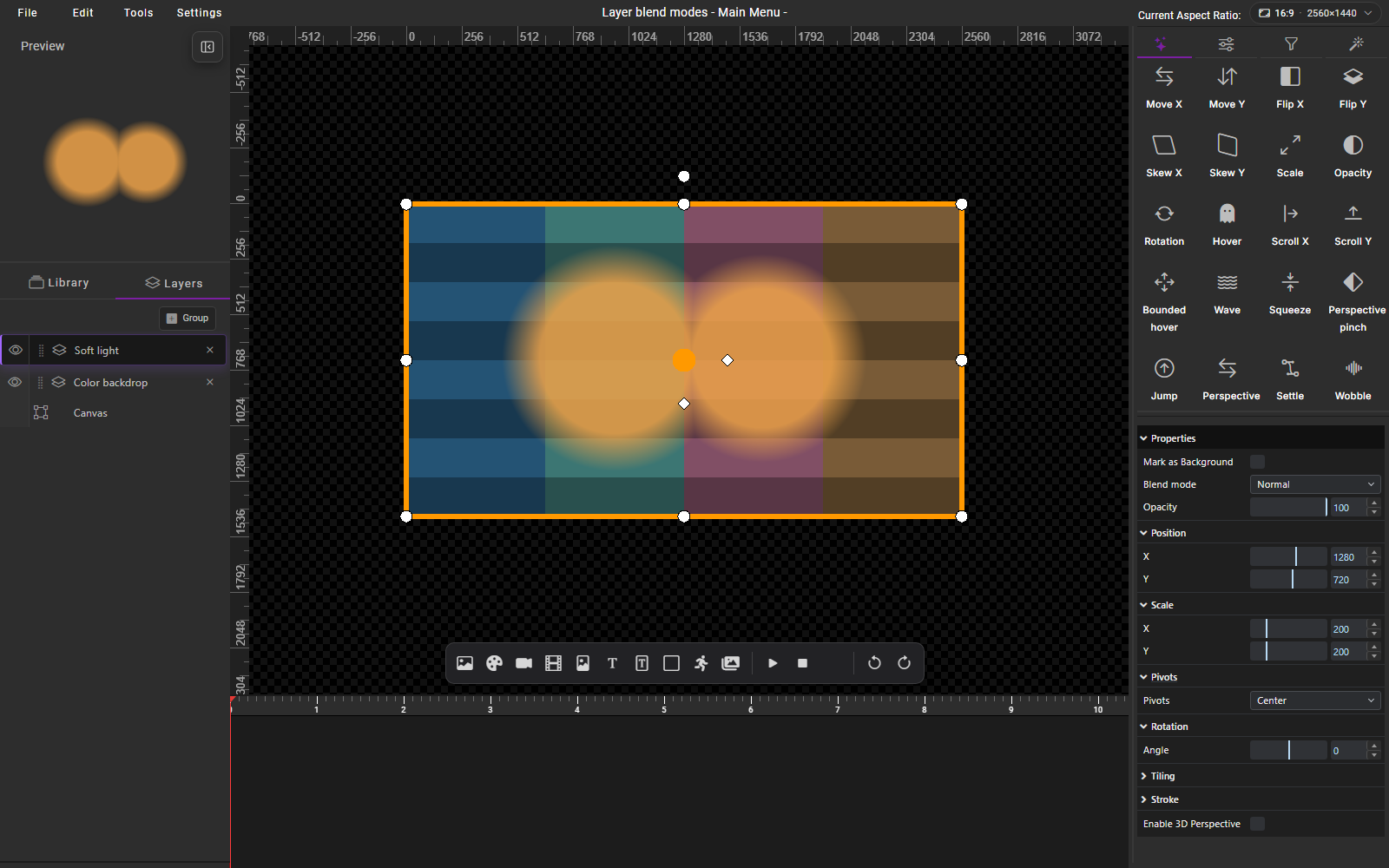
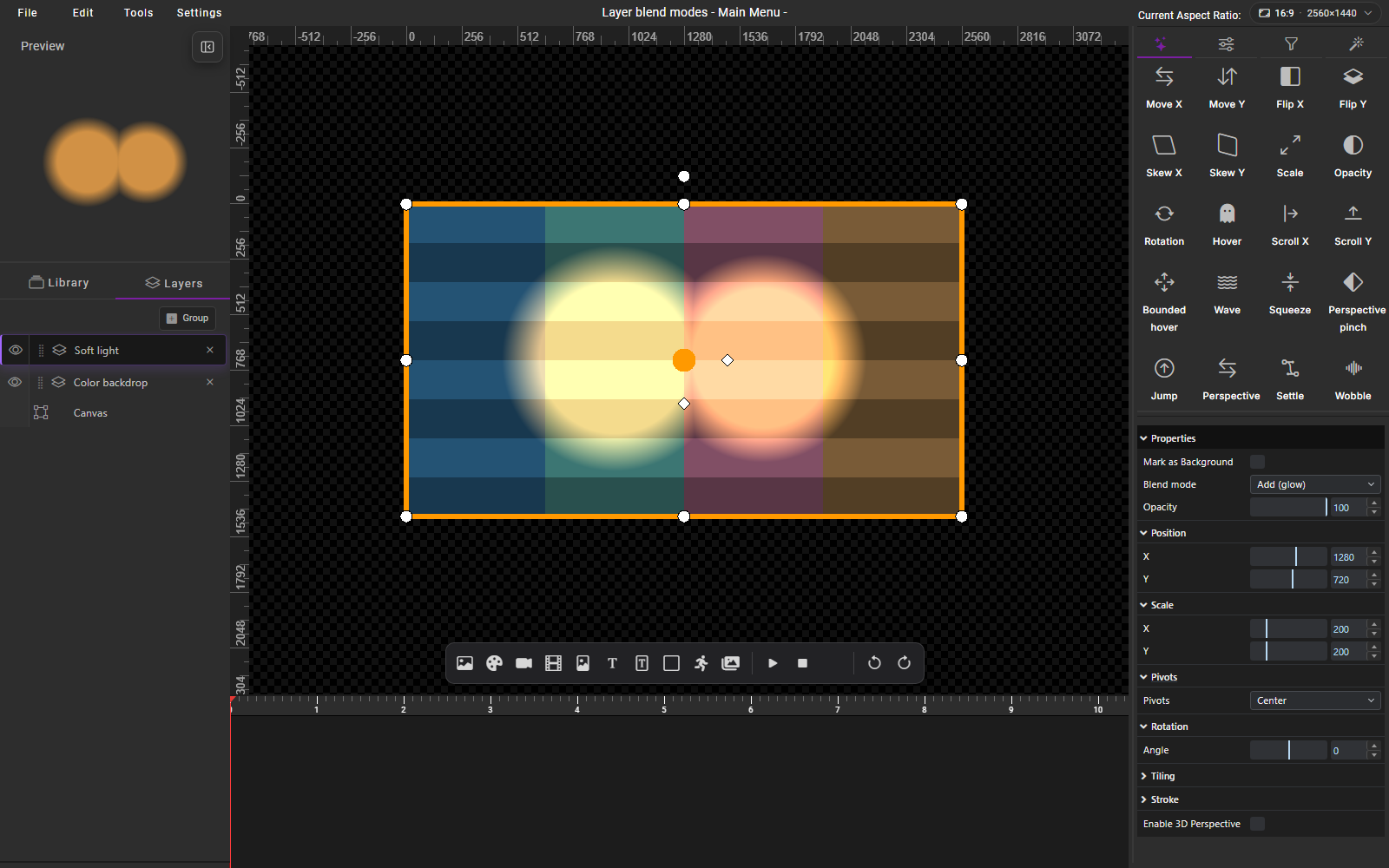
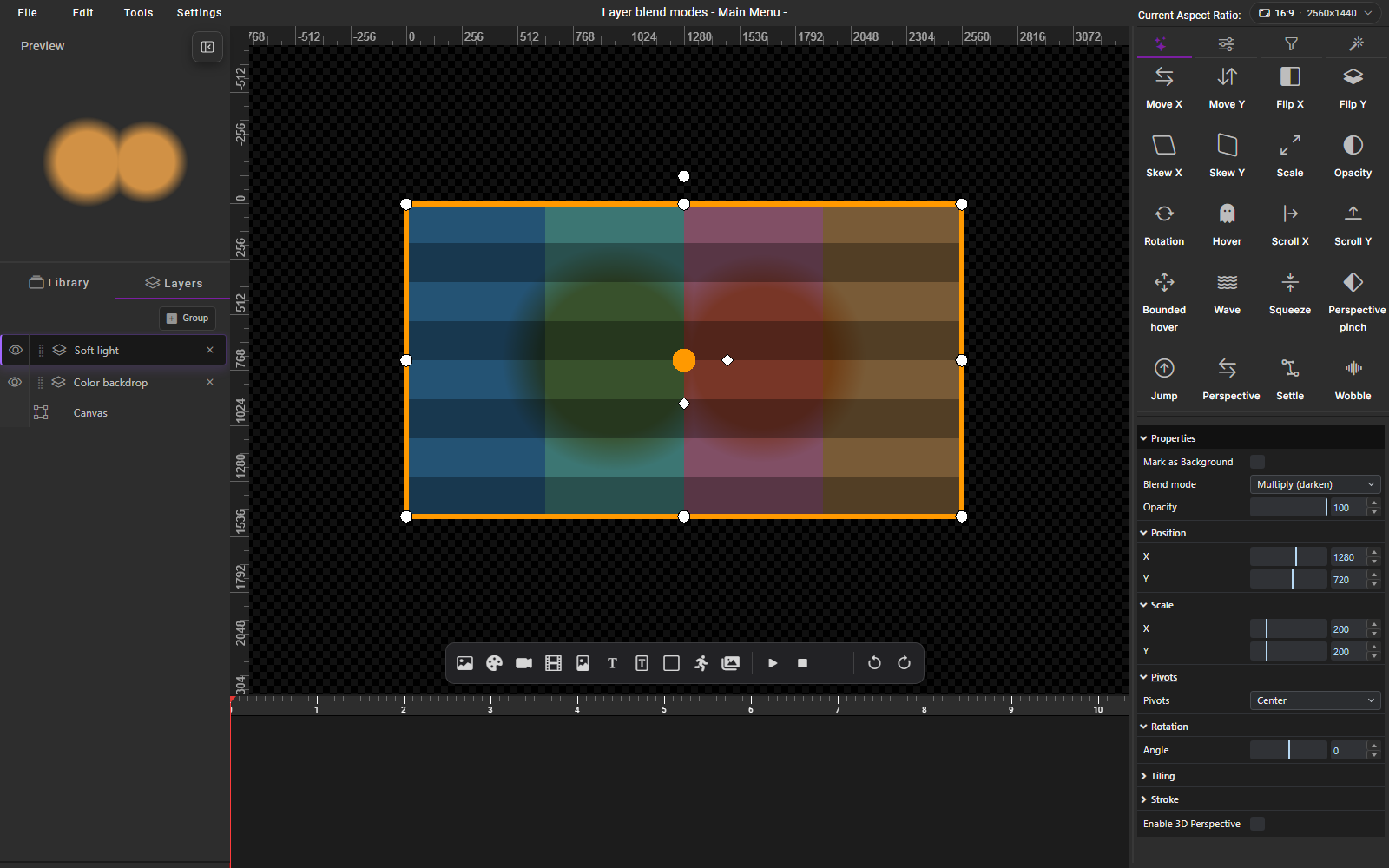
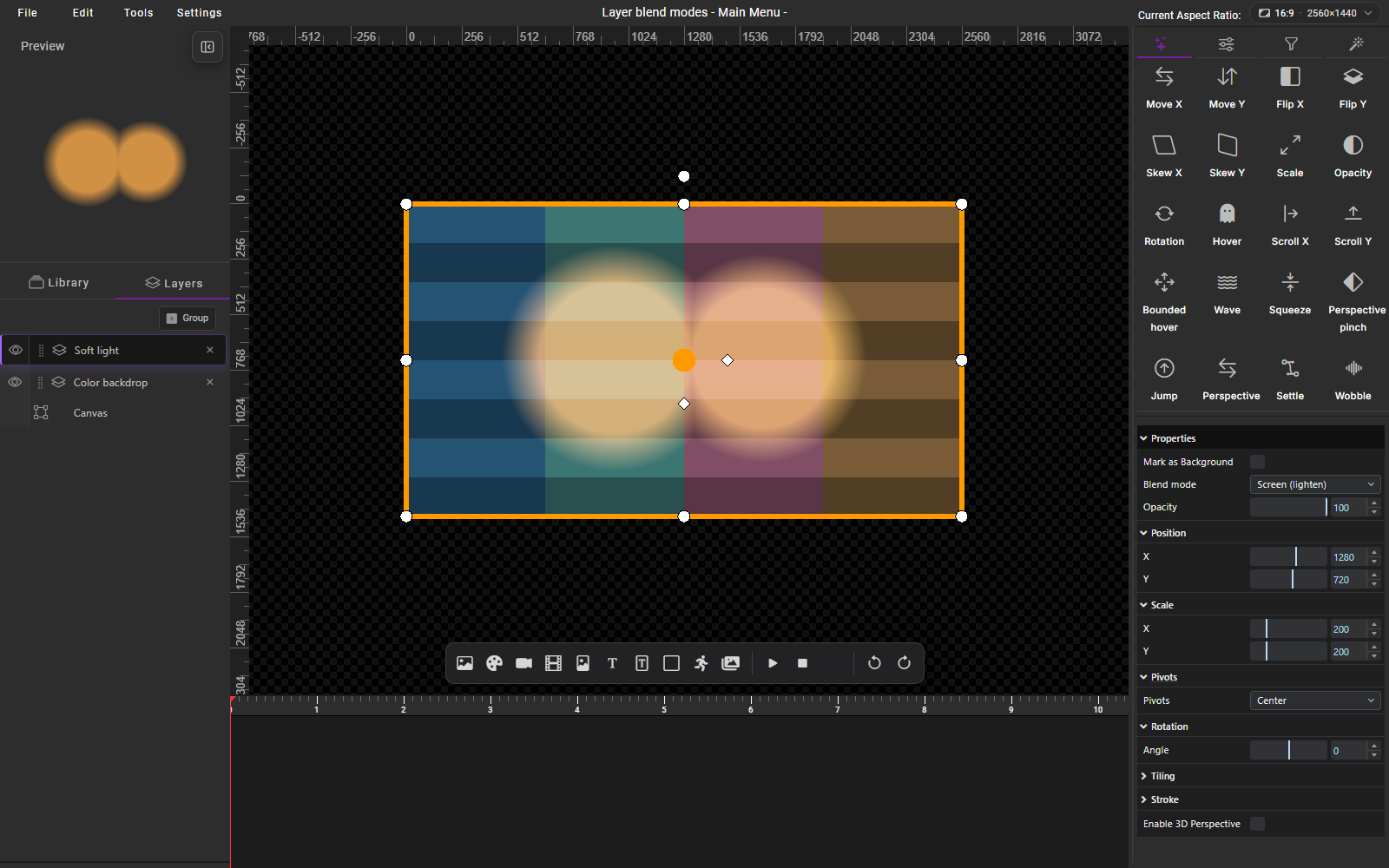
Each screenshot uses the same scene: two soft orange lights above a striped, four-color backdrop. Layer positions, sizes, and opacity stay unchanged. Only Blend mode changes. The selected mode appears in the right-hand Properties panel.
Normal
The orange lights cover the backdrop according to their transparency. The opaque-looking centers hide most of the stripe detail.
Add (glow)
The lights brighten the backdrop. Overlapping colors produce bright yellow and peach centers.
Multiply (darken)
The same orange artwork darkens the backdrop. The stripe pattern stays visible through the shaded circles.
Screen (lighten)
The lights create lighter overlays while retaining more of the backdrop's color and stripe detail than Add in this example.
Blend a group
A non-Normal group blends as one combined image. Children first combine within the group. The group's selected mode then blends the combined result with the layers below the group.
Normal preserves the group's usual child blending. To blend each image or video independently with the scene below, leave the group on Normal and choose a mode on each supported child layer.
Masks and effects are included before the group's final blend.
Supported layers and saved settings
Images, videos, EmuMovies video, metadata images, and groups expose the selector. Text, shapes, sprite sheets, and flipbooks have no individual blend selector in this delivery. These layers still participate inside a blended group.
Blend mode is a static layer property. Timeline scrubbing, opacity animations, and playback resets retain the selected mode. Switching layers retains the selection. Each aspect ratio stores its own setting. Saving, reopening, and undo/redo preserve the settings.
Existing imported Add and Multiply settings retain their original appearance and transparency handling. Loading an older theme does not add a blend setting. Choose Normal to return an edited layer to standard transparency.
Availability
These screenshots show the local Builder development update in HyperTheme #597, with shared playback support in Player #105. The scene uses test artwork. The screenshots do not represent a hosted release.
Use a Builder release and HyperSpin release containing this update before relying on matching exported playback. Older players lack Screen and the new standard-alpha settings. Packaged HyperSpin playback and live-account save/upload require release validation.