Grid Overlays and Alignment Guides
Grid overlays provide visual reference lines for alignment and composition. The guides appear inside the editor and stay out of the published theme.
Choose a grid
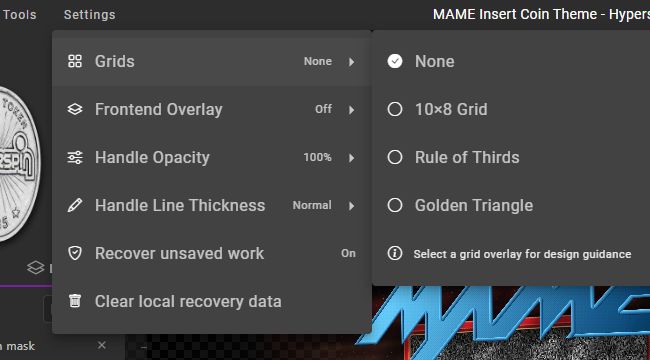
- Open Settings from the top menu.
- Select Grids.
- Choose None, 10×8 Grid, Rule of Thirds, or Golden Triangle.
Switch grids while editing to compare different compositions. Return to None for a clean canvas review.
Compare the overlays
| Grid | Best use |
|---|---|
| None | Final review and detailed visual checks |
| 10×8 Grid | Even spacing, rows, columns, and symmetry |
| Rule of Thirds | Clear focal points and balanced asymmetry |
| Golden Triangle | Diagonal movement and directional compositions |
10×8 Grid
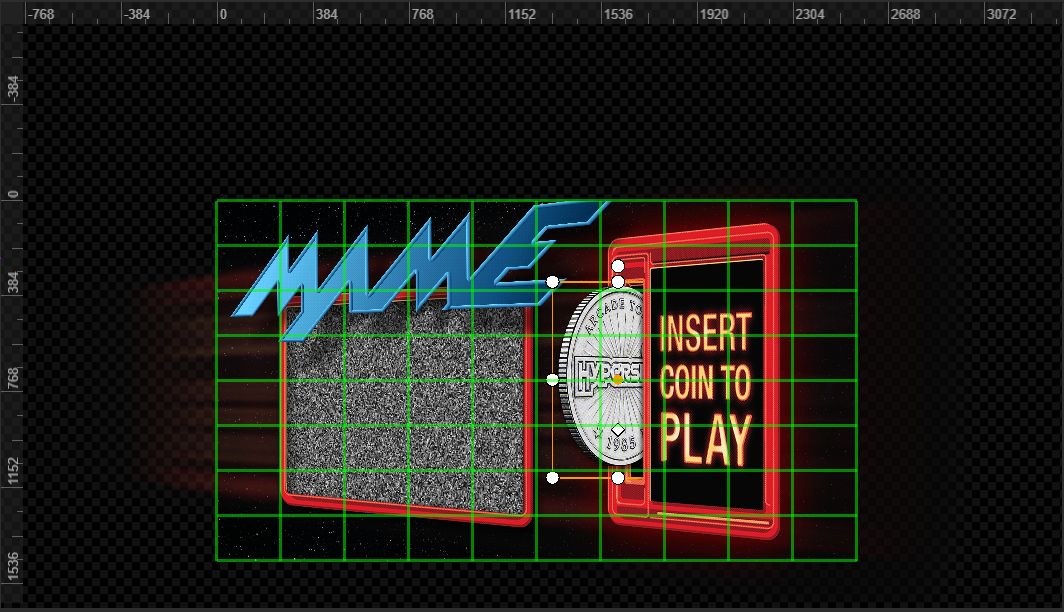
The 10×8 Grid divides the canvas into ten columns and eight rows. Use its intersections and repeated spacing to build structured layouts.
Good uses include:
- Centering a logo.
- Aligning several menu or metadata elements.
- Matching left and right margins.
- Dividing the canvas into repeated zones.
- Checking vertical and horizontal spacing.
Structured layout workflow
- Place the largest element first.
- Use the center lines to check balance.
- Place repeated elements on matching rows or columns.
- Keep equal grid intervals between related elements.
- Turn the grid off and refine by eye.
Rule of Thirds
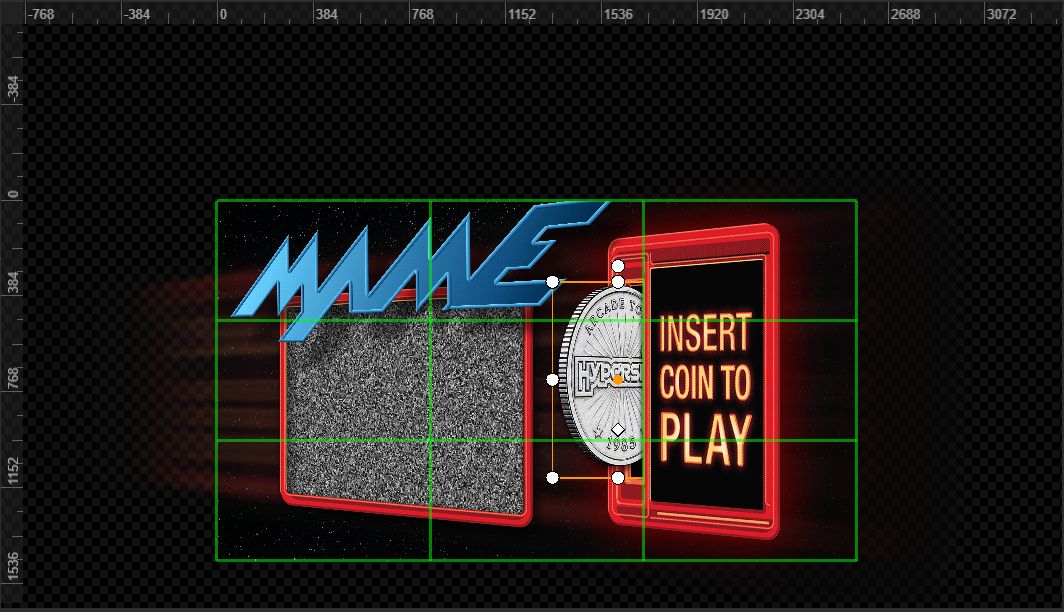
The Rule of Thirds divides the canvas into nine sections. Four line intersections mark strong positions for focal elements.
Good uses include:
- Placing a logo away from the exact center.
- Balancing a wheel or metadata panel against large artwork.
- Separating branding, content, and metadata into horizontal zones.
- Leaving intentional negative space.
Focal-point workflow
- Choose one primary focal element.
- Place the element near one intersection.
- Place secondary content near the opposite line or intersection.
- Keep less important content away from the main focal point.
- Preview without the overlay.
For the example above, the main token and cabinet artwork sit near the right-side intersections. The blue logo and video frame balance the left side.
Golden Triangle
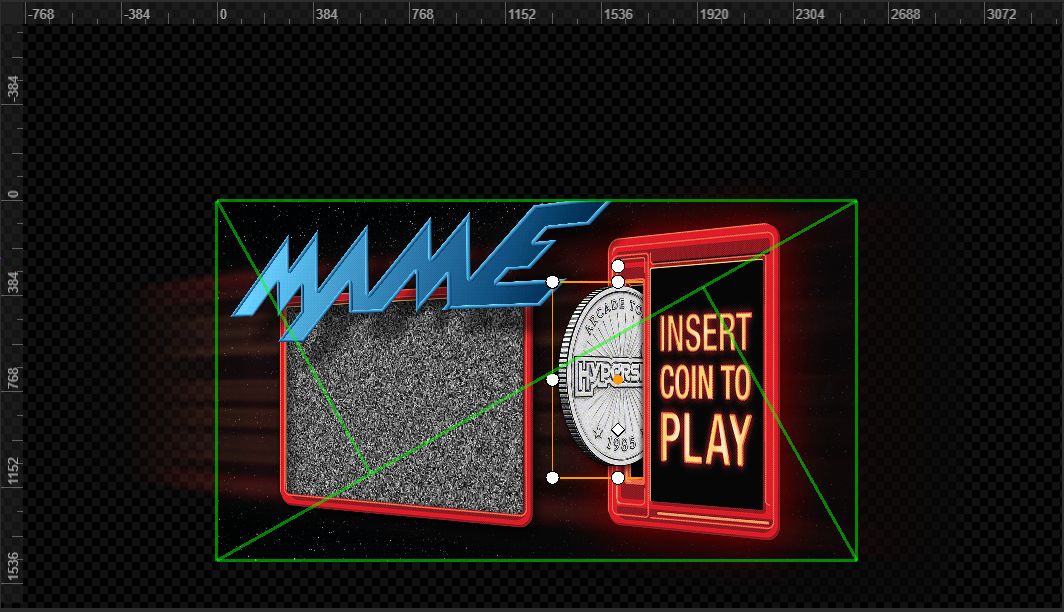
The Golden Triangle uses diagonal guides. Use the diagonals to support movement, perspective, and directional artwork.
Good uses include:
- Following the angle of a character or vehicle.
- Directing attention toward a logo or title.
- Placing foreground and background elements in separate triangular regions.
- Building a composition around diagonal light, motion, or framing.
Diagonal layout workflow
- Identify the strongest diagonal in the artwork.
- Choose the guide with a matching direction.
- Place the primary element near a guide intersection.
- Align secondary shapes or effects with the same direction.
- Remove the overlay and check visual flow.
Use grids with layers and properties
Grid overlays provide composition guidance. The Layers and Properties panels handle precise editing.
Use this sequence:
- Select the target layer.
- Turn on the grid suited to the layout.
- Move the layer on the canvas.
- Enter exact X and Y values in Properties when needed.
- Check stacking order in Layers.
- Turn the grid off.
- Preview from
0s.
Pick the right grid
Structured interface
Use the 10×8 Grid for menus, text panels, repeated cards, and symmetrical arrangements.
Character or product focus
Use Rule of Thirds for one dominant subject with supporting content on the opposite side.
Motion or angled artwork
Use Golden Triangle when the source art already contains strong diagonal lines.
Final review
Use None. Check the theme without editing guides before publishing or taking a presentation screenshot.
Practical checks
Horizontal alignment
- Compare element tops or centers against one grid line.
- Keep related text fields on a shared row.
- Check whether left and right margins use equal intervals.
Vertical alignment
- Place related elements on a shared column.
- Check the gap between stacked elements.
- Use the center line to review symmetry.
Visual balance
- Compare the visual weight on each side of the canvas.
- Move large, bright elements away from crowded sections.
- Leave open space around the primary focal element.
Multi-aspect projects
Review the layout separately for every supported aspect ratio. A guide position suited to 16:9 does not guarantee the same result at 4:3.
Common problems
The composition feels crowded
- Turn on Rule of Thirds.
- Keep one section open.
- Reduce overlap near the primary subject.
Repeated elements look uneven
- Turn on the 10×8 Grid.
- Align the elements on one row or column.
- Use equal intervals between elements.
The layout feels static
- Try Golden Triangle.
- Align secondary effects with a diagonal.
- Move the focal element away from the exact center.
The grid covers important details
- Switch to None during detailed edits.
- Turn the grid back on for an alignment check.
Final composition review
- The primary focal point is clear.
- Related elements share consistent alignment.
- Repeated spacing looks even.
- Text stays readable against the background.
- Important content stays inside the visible canvas.
- The layout works at every supported aspect ratio.
- The final preview uses None.