Custom Easing Curves
Custom easing changes the pace of an animation between its start and end values. Use the curve to hold a layer near its starting position, accelerate early, or settle gently at the end. The curve changes timing, not the path across the screen.
Edit a curve
- Select a layer in the Builder, then add Move X, Move Y, Scale, Opacity, Rotation, Flip X, Flip Y, Skew X, or Skew Y.
- Select the animation bar in the timeline. Set Start, End, and Speed in the Properties panel.
- Stop playback. Choose Custom curve from Easing.
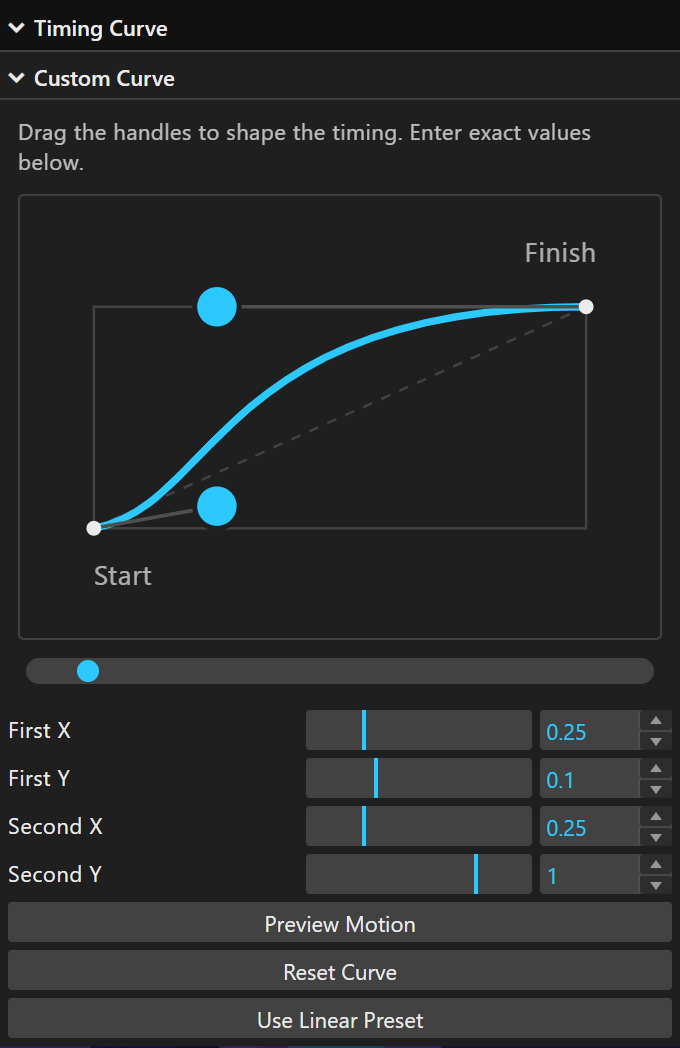
- Scroll to Timing Curve. Drag the two blue handles in the graph, or enter values in First X, First Y, Second X, and Second Y.
- Select Preview Motion to watch the small dot follow the timing. Select Play in the Builder toolbar to watch the layer itself move.
- Save the theme. The curve stays with the selected animation when you reopen the theme.
The graph starts at (0, 0) and finishes at (1, 1). The endpoints stay fixed. The two blue handles change the middle of the curve. The X values range from 0 to 1; the Y values range from -0.5 to 1.5. Y values outside 0 to 1 produce bounded undershoot or overshoot.
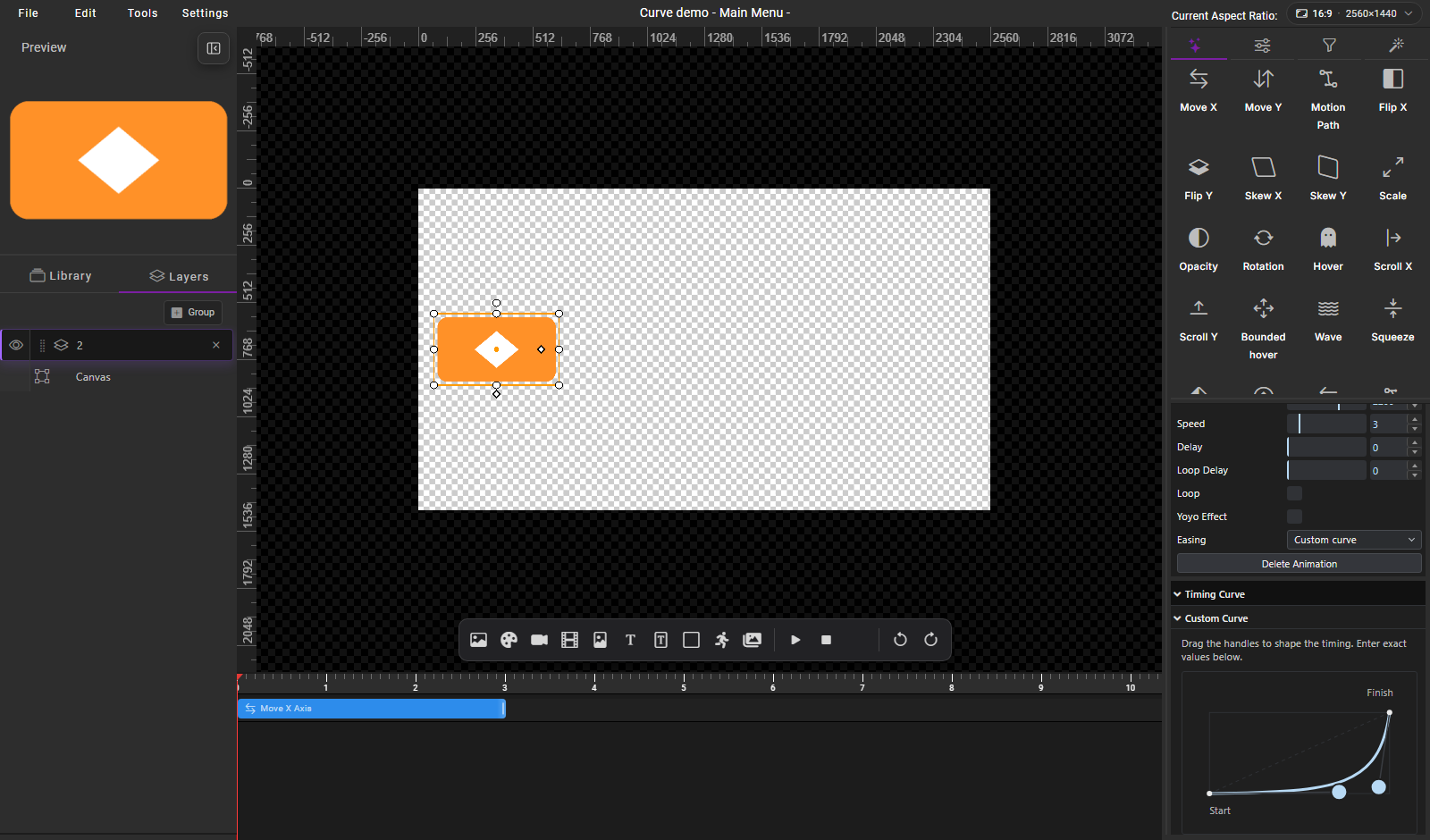
The Properties panel scrolls independently. Scroll down to reach all four number fields and the preview button.
Compare two timings
The sample image travels from X 350 to X 2200 over three seconds. The first playback uses None, which moves at a constant pace. The second uses a custom slow-start curve. Start, end, and duration stay the same.
To reproduce the slow start, enter First X 0.72, First Y 0.02, Second X 0.94, and Second Y 0.08. The layer stays near its starting position longer, then moves quickly near the end.
For a curve with nearly constant speed, use First X 0, First Y 0, Second X 1, and Second Y 1. Choose Use Linear Preset to return to the ordinary None setting. Choosing Custom curve again restores the stored control points.
Current scope
Custom curves work with the ordinary animations listed above. Existing named easing choices keep their behavior. Motion Path, Blur, Pixelate, imported Smart Theme specific controls, and property timeline animations do not offer this curve editor yet.
For a curved route across the canvas, use Motion Path. Custom easing controls the speed along an animation, not the route. See Animation Basics and Animation Timeline for the surrounding controls.