Netplay
Netplay runs a RetroArch game online with friends. One player hosts. Other players join from the lobby or by address. Each player runs the game on their own PC, and RetroArch keeps everyone in sync.
What you need
- RetroArch added as a platform in HyperHQ
- The same game file as the host
- The same RetroArch core as the host, ideally the same core version
- A core with netplay support
Every player needs their own copy of the game. HyperHQ never sends game files between players.
Supported games
Netplay appears on games launched with RetroArch. Games set up with the standalone emulators below also run netplay, through a matching RetroArch core.
| Emulator | RetroArch core used for netplay |
|---|---|
| DuckStation, ePSXe, PCSX-Reloaded | Beetle PSX HW, Beetle PSX, or PCSX-ReARMed |
| FinalBurn Neo | FinalBurn Neo |
| MAME (arcade systems only) | MAME |
| Kega Fusion | Genesis Plus GX or PicoDrive |
| Snes9x | Snes9x |
| Nestopia | Nestopia |
| FCEUX | FCEUmm |
| mGBA | mGBA |
| VisualBoyAdvance-M | VBA-M |
| Stella | Stella or Stella 2014 |
| Ymir | Beetle Saturn |
For these games, install the listed core in RetroArch. HyperHQ starts the netplay session in RetroArch and keeps your normal emulator for regular launches. The Netplay dialog shows the core in use, for example "Runs in RetroArch's Snes9x core for netplay".
Set up netplay
Netplay is on by default.
- Open Settings.
- Open Netplay under HyperSpin.
- Set Enable Netplay to On.
- Enter a Player Name. Other players see this name in rooms and the lobby.
- Select Save Changes.
| Setting | Default | Purpose |
|---|---|---|
| Enable Netplay | On | Shows Netplay on supported games and the lobby button on systems |
| Player Name | Empty | Your name in rooms and the lobby |
| Port | 55435 | Port used when you host a direct game, from 1024 to 65535 |
| Open Port Automatically | On | Asks your router to open the port while you host (UPnP) |
| Relay Server | Off | Hosts through a relay instead of a direct connection |
| List Hosted Games in the Public Lobby | Off | Lists your rooms where anyone finds them |
| Check for New Games at Startup | Off | Indexes new and changed games each time HyperHQ starts |
The host dialog lets you change the port, relay, port opening, and lobby listing for each session.
Index your games
The lobby matches each room to a game in your library by file. HyperHQ reads your game files the way RetroArch does and saves the results in a netplay index. Rooms for games outside the index show as Not in library.
- Open Settings, Netplay.
- Under Game Index, select Index missing games.
- Wait for the indexed count to finish.
Indexing runs in the background. Select Stop indexing to cancel. Select Reindex all games after replacing or renaming game files.
HyperHQ does not match games stored in 7-Zip archives. Use ZIP archives or uncompressed files for games you want to play online.
Arcade romsets match by set name when the archive file differs from the host's. The lobby flags these rooms with a sync warning.
Host a game
- Open the game in HyperHQ.
- Select the Netplay icon on the game page. You also find Netplay in the game's right-click menu.
- Select Host a game.
- Set the session options.
- Select Start hosting.

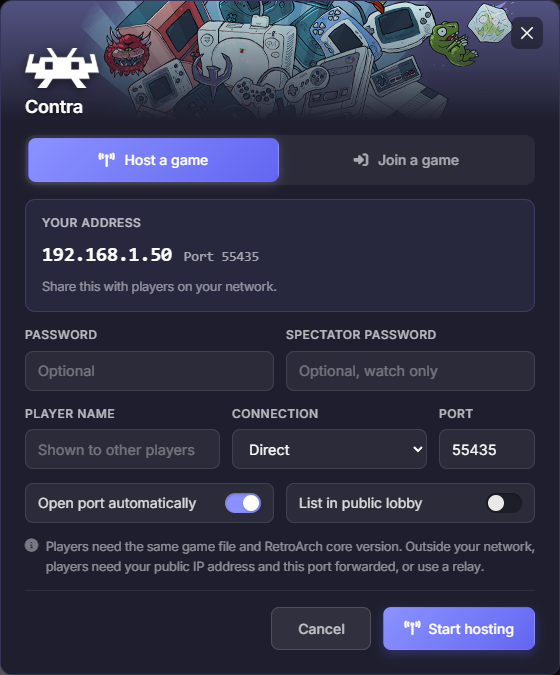
RetroArch opens the game and waits for players.
| Option | Purpose |
|---|---|
| Password | Players enter this password to join. Optional. |
| Spectator password | Players entering this password watch without playing. Optional. |
| Player name | Your name for this session |
| Connection | Direct, or a relay server |
| Port | Port for a direct connection |
| Open port automatically | Asks your router to open the port while you host |
| List in public lobby | Shows your room to anyone browsing the lobby |
Set only a spectator password to run a watch-only room. Everyone who joins watches, and nobody else plays.
Let players reach you
Players on your network see your room in the lobby under On your network. The host dialog also shows your local address and port under Your address. Share both with players who want to join by address.
Players outside your network need one of these:
- Open port automatically turned on, with a router supporting UPnP
- The port forwarded to your PC in your router settings
- A relay server
For a direct connection, share your public IP address and the port with players outside your network.
Host through a relay
A relay passes game traffic between players. Nobody opens ports. Relays add some delay.
HyperHQ includes relays in New York, Madrid, São Paulo, and Singapore.
- To use a relay for one session, choose the relay under Connection in the host dialog.
- To use a relay every time, choose the relay under Settings, Netplay, Relay Server.
- To use your own relay, choose Custom server and enter a host name or IP address, with an optional
:port.
Relay rooms always appear in the public lobby. Players join them from the lobby.
Join a game
Join from the game page
- Open the game in HyperHQ.
- Select the Netplay icon.
- Select Join a game. The number beside the button shows open rooms for this game.
- Select a room. Hosts on your network appear first.
- Select Join game.
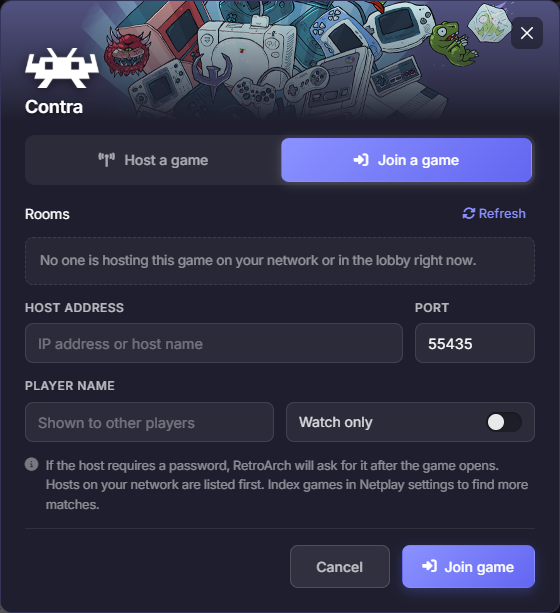
Join by address
- Open the Netplay dialog and select Join a game.
- If a room is selected, select Use address.
- Enter the Host address and Port.
- Select Join game.
Watch a game
- Select a room or enter an address.
- Turn on Watch only.
- Select Watch game.
Enter a password
RetroArch asks for the password after the game opens. Enter the player password to play. Enter the spectator password to watch.
Browse the lobby
The lobby lists rooms hosted by other RetroArch players, plus hosts on your network.
Open the lobby from either place:
- On a system's game list, select the Netplay rooms button in the toolbar. The lobby opens for the current system. Select All systems to see every room.
- In Settings, Netplay, select Browse lobby.
The Netplay rooms button appears on systems with games set up for netplay.
Filter and view rooms
- You can join: rooms matching a game and core in your library
- On your network: hosts on your local network
- All rooms: every open room
Switch between Tile view and List view with the buttons at the top. Select Refresh to update the list. Focus a room to see its host, players, core, and any warning in the header.
Select a room to join.
Room status
| Status | Meaning | Fix |
|---|---|---|
| Join | The room matches your game and core | Select the room |
| May not stay in sync | Your core or RetroArch version differs from the host's, or the game matched by romset name | Install the same core and RetroArch version as the host |
| Not in library | The game is missing from your library or the index | Add the game, then index your games |
| Different version | Your copy is a different release of the game | Use the same game file as the host |
| Different core | The host uses another RetroArch core | Change the system's core to match the host |
| Not set up | Your copy of the game has no netplay setup | Check the game's emulator and core |
| Not RetroArch | The room comes from a program other than RetroArch | None |
| Host unreachable | The host is not accepting connections | Try again later |
A lock icon marks a password-protected room. A cloud icon marks a relay room.
During a session
- Save states are unavailable in the pause menu.
- Version switching is unavailable in the pause menu.
- Netplay needs a direct RetroArch launch. Games launched through Steam or another launcher shortcut do not support netplay.
Every netplay screen supports controller navigation.
Common problems
Netplay does not appear on a game
- Confirm Enable Netplay is On in Settings, Netplay.
- Confirm the game launches with RetroArch or with an emulator from the supported list.
Netplay isn't available for this game
The dialog explains the cause. Common fixes:
- Add RetroArch in HyperHQ.
- Install the listed core in RetroArch.
- Update RetroArch and its cores.
- Update the core info files in RetroArch.
- Select a different core for the system. Netplay needs a core with netplay support.
No joinable rooms
- Index your games in Settings, Netplay.
- Use the same game file as the host.
- Set the system to the same core as the host.
- Select All rooms to see every open room and its status.
The public lobby could not be reached
HyperHQ lists hosts on your network only. Check your internet connection, then select Refresh.
Players outside your network fail to connect
- Turn on Open port automatically and confirm UPnP is on in your router.
- Forward the port to your PC in your router settings.
- Host through a relay.
The game falls out of sync
- Install the same core version as the host.
- Install the same RetroArch version as the host.
- Use the same romset version as the host for arcade games.