Quick Start Guide
Using Linux
Follow the same editor workflow on Linux. Review Media and HyperTheme for browser, font, shortcut, audio, and frontend playback checks.
Create a HyperTheme project, add one visual element, and animate the element from the timeline.
1. Create a project
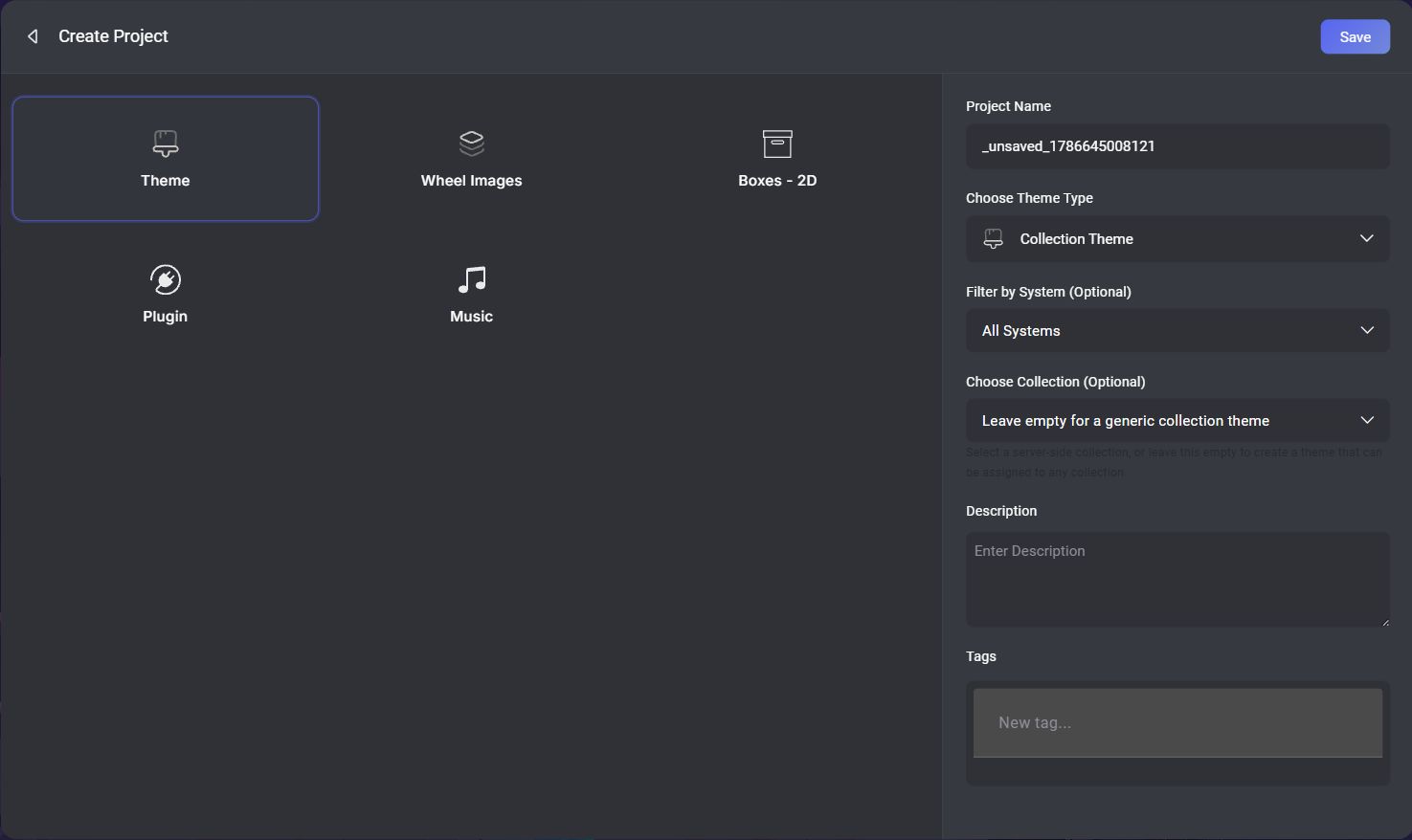
From the HyperTheme dashboard, start a new project.
- Select Theme.
- Enter a project name.
- Choose a theme type.
- Select a system for menu and game themes, or a collection for a collection theme.
- Add an optional description and tags.
- Select Save.
The editor opens after project creation.
2. Upload an asset
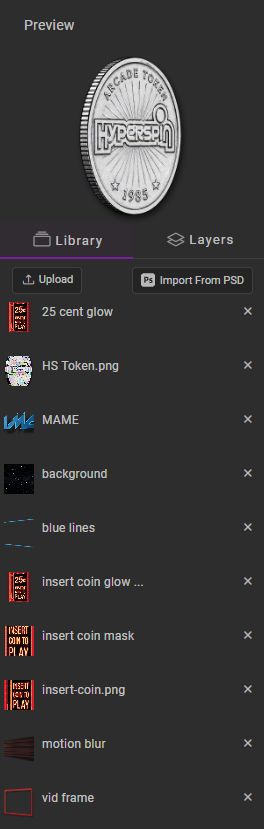
Open the Library tab in the left panel.
- Select Upload.
- Choose an image from your computer.
- Wait for the asset to appear in the Library.
- Select the asset to review the preview.
Use PNG for artwork requiring transparency. Use clear file names such as game-logo.png or background-16x9.jpg.
3. Place the asset
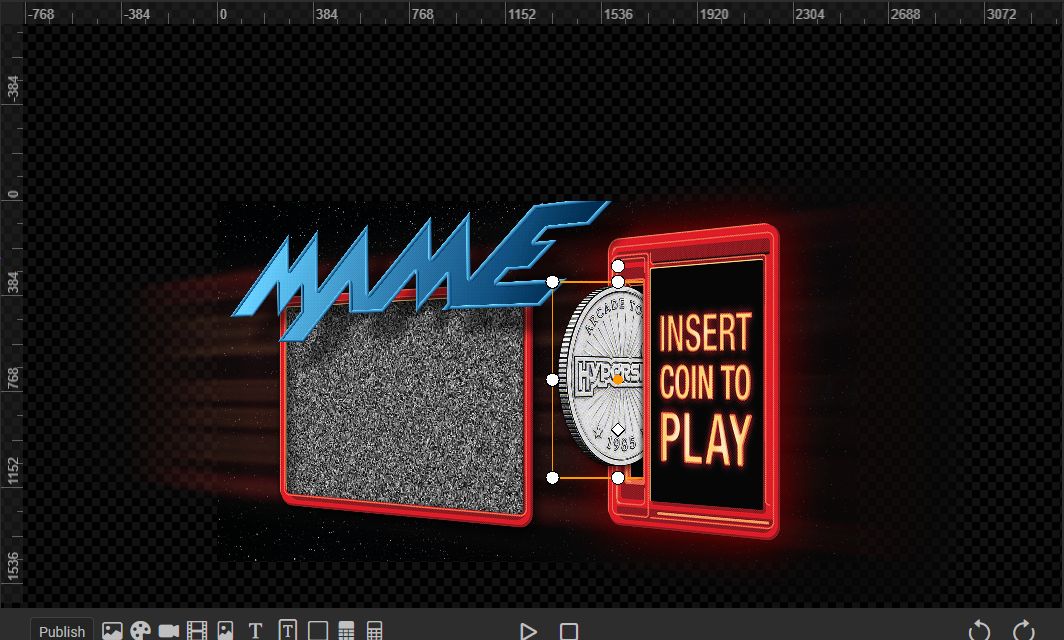
Drag the uploaded asset from the Library onto the canvas. HyperTheme creates a layer and selects the new element.
- Drag inside the selection to move the element.
- Drag a corner handle to resize the element.
- Drag the rotation control to rotate the element.
- Use arrow keys for small position changes.
- Enter exact values in the Properties panel.
4. Organize the layer
Open the Layers tab in the left panel.
- Select the new layer.
- Give the layer a descriptive name.
- Drag the row to set its stacking order.
- Use the eye icon to hide or show the layer.
Higher rows appear in front of lower rows.
5. Add an animation
Select the layer, then choose an animation from the upper-right panel. Start with Move X, Move Y, Scale, Opacity, or Rotation.
After selection, HyperTheme adds an animation bar to the timeline.
6. Set the timing
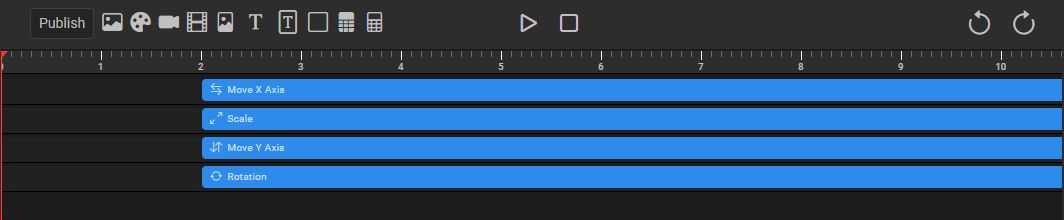
Use the timeline to control when each animation runs.
- Select a blue animation bar to load its settings.
- Drag the bar to change its start time.
- Select the bar and drag the right resize handle to change duration.
- Drag the red playhead to inspect a specific time.
- Press Delete after selection to remove an animation.
Move the playhead to 0s before changing layer properties.
7. Preview the theme
Select the play button near the timeline. Review the full animation from the start.
Check these points during preview:
- The layer enters and exits at the intended time.
- Motion stays inside the visible canvas.
- Text and logos remain readable.
- Looping animations restart cleanly.
- Video and audio timing match the visual sequence.
Use the stop button to return to 0s.
8. Add more content
Repeat the same workflow for each element:
- Upload media.
- Place media on the canvas.
- Name and order the layer.
- Set position and scale.
- Add animations.
- Preview from the start.
The bottom toolbar also adds text, scrolling text, shapes, sprite sheets, flip books, metadata, and backgrounds.
9. Save and publish
Save throughout the editing session. Before publishing:
- Preview the full timeline.
- Check every layer at
0s. - Review the selected aspect ratio.
- Confirm project name, description, and tags.
- Select Publish when the theme is ready.
Quick fixes
The asset is missing
- Open the Library tab.
- Confirm the upload finished.
- Check whether the file type is supported.
The layer is hidden
- Open the Layers tab.
- Select the eye icon beside the layer.
- Move the layer higher if another layer covers the element.
Properties appear disabled
- Select a layer.
- Move the playhead to
0s.
The timeline is empty
- Select a layer.
- Add an animation from the right panel.