Report a Bug
Found a bug? Report the bug straight to Buggernaut from HyperHQ. Every report includes your HyperHQ version, your OS and a hardware summary. Attach your recent logs and debugging database too. They're the fastest way for us to track down the problem.
You'll need to be signed in to your HyperSpin account.
Turn on verbose logging first
Verbose logging records launch steps, emulator commands and controller input. Turn on Verbose Logging & Diagnostics on the Logs page, make the problem happen again, then send your report.
Skipped this step? The report dialog reminds you. You're still free to send without verbose logs.
Open the report from Settings
1. Open Settings
Choose the Settings gear in the top-right corner.

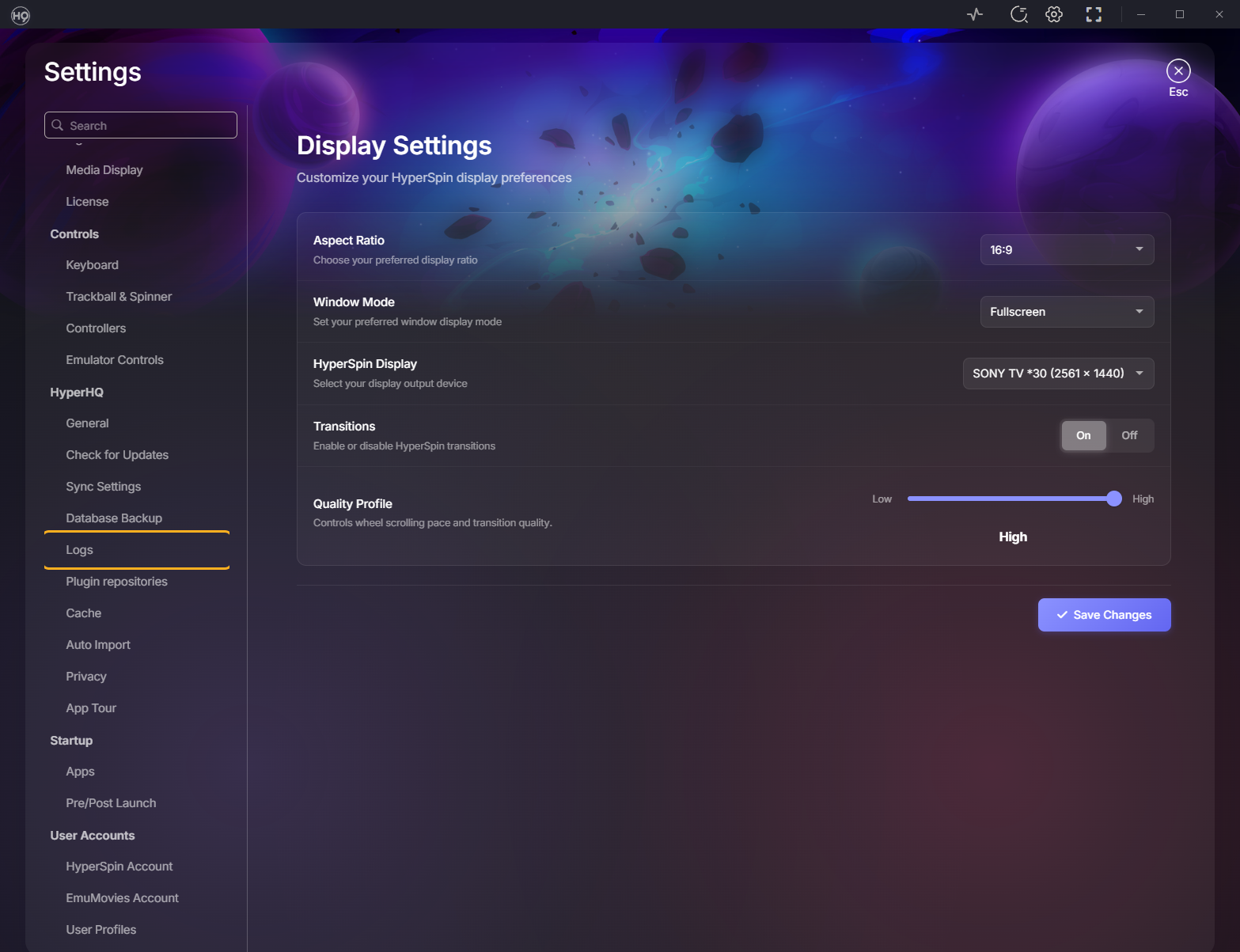
2. Go to Logs
Under HyperHQ, choose Logs.
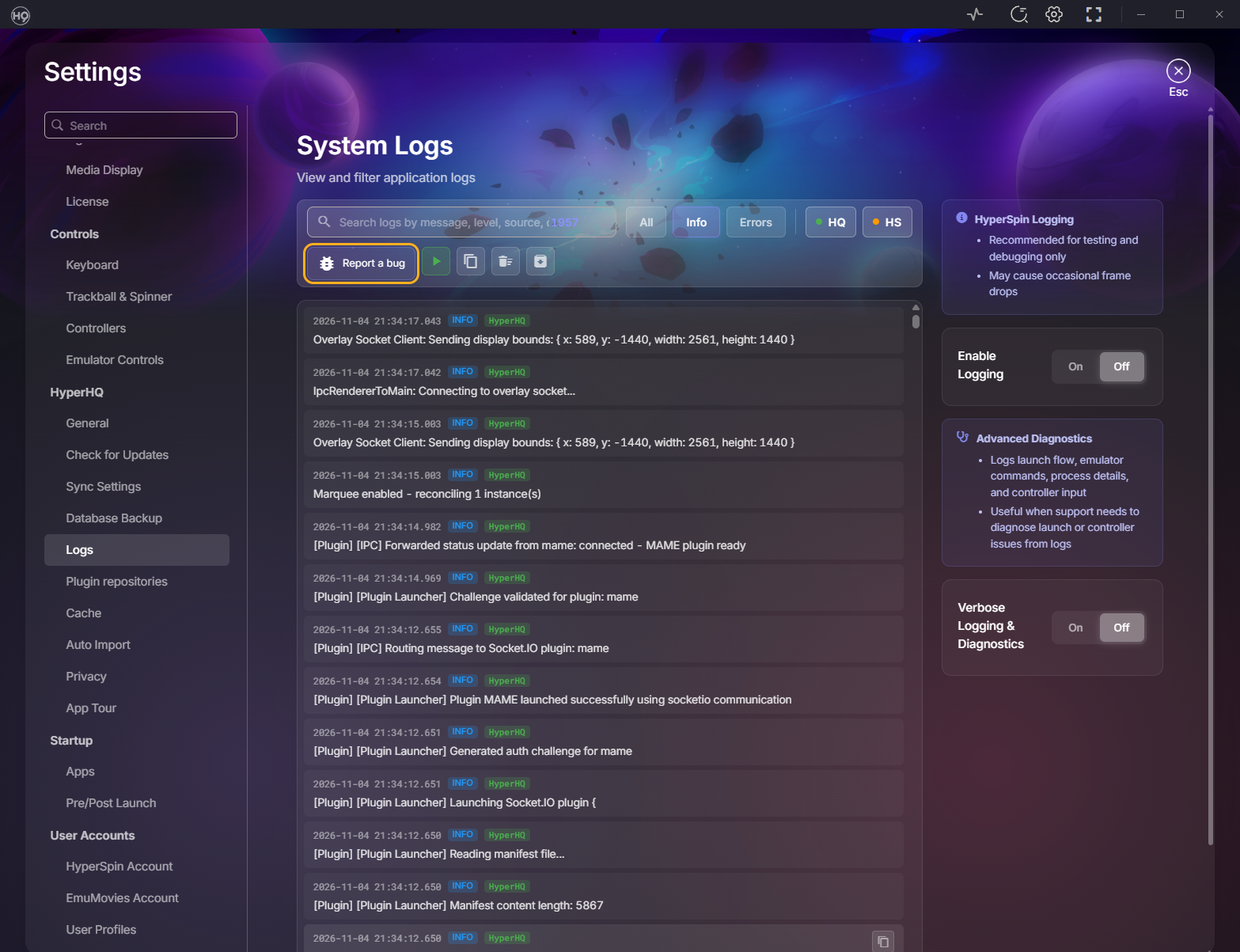
3. Choose Report a bug
On the System Logs page, choose Report a bug.
Open the report from the taskbar
Quicker when HyperHQ is minimized or running in the background.
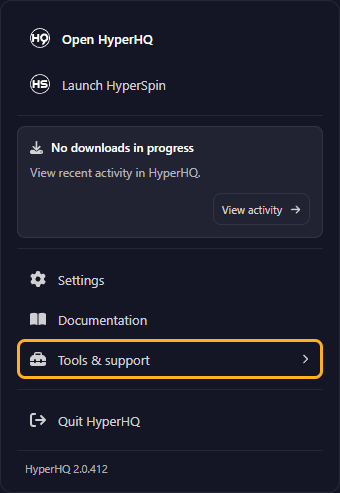
1. Right-click the HyperHQ icon
Find the HyperHQ icon in the notification area at the right end of the Windows taskbar. Don't see the icon? Choose the ^ arrow (Show hidden icons) first.
Right-click the HyperHQ icon, then choose Tools & support.
2. Choose Report a bug
HyperHQ opens the Logs page with the report ready to fill in.
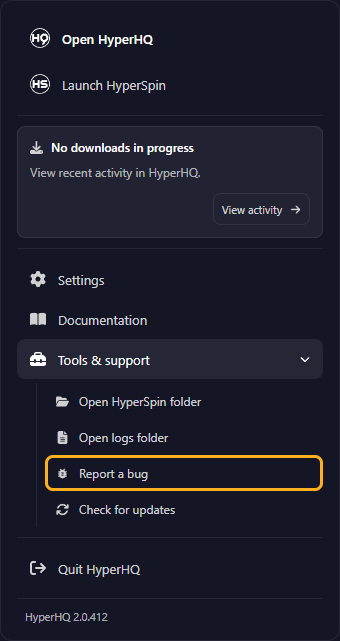
On Linux, right-click the HyperHQ tray icon and choose Tools & support → Report a bug.
Choosing Report a bug from the taskbar again brings back your open draft. Nothing gets wiped.
Fill in and send
1. Check verbose logging
With verbose logging off, you'll see a notice at the top. Choose Enable verbose logging and retry, make the problem happen again, then reopen the report. To send now anyway, keep going.
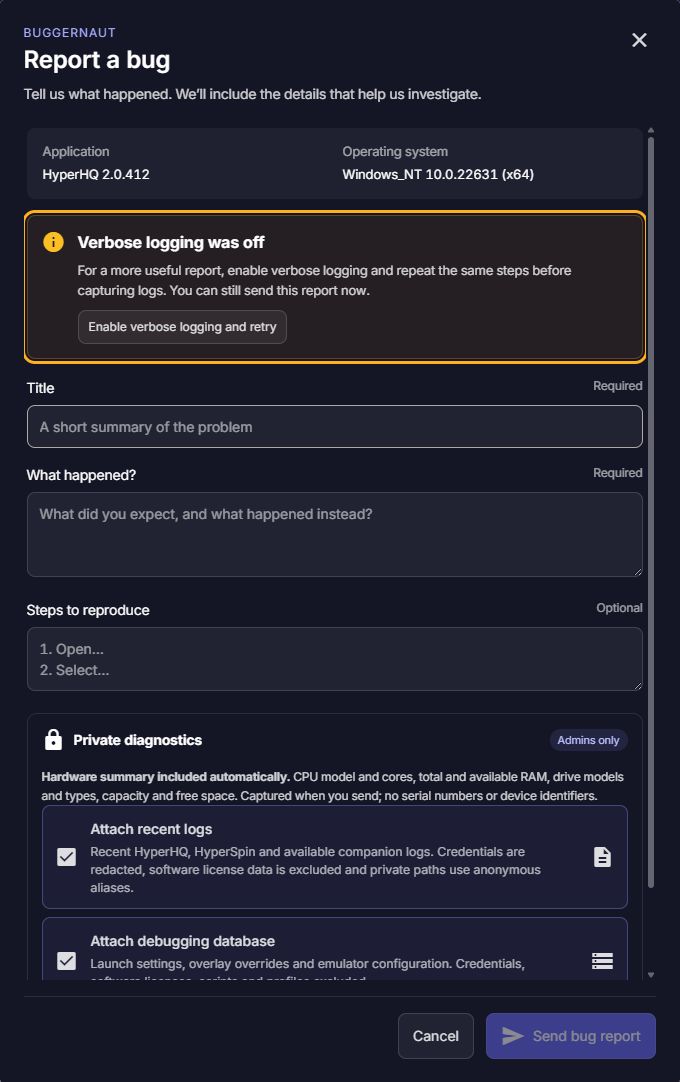
2. Describe the problem
- Title: a short summary.
- What happened?: what you expected, and what you got instead.
- Steps to reproduce (optional): the exact steps to trigger the problem.
HyperHQ fills in your version and OS for you.
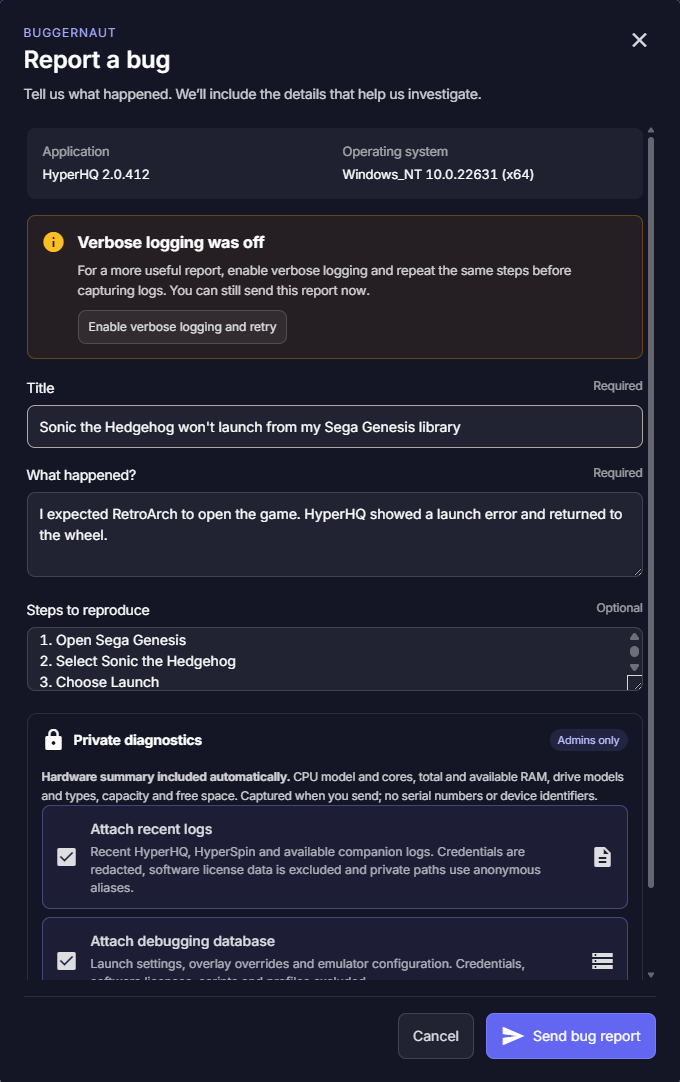
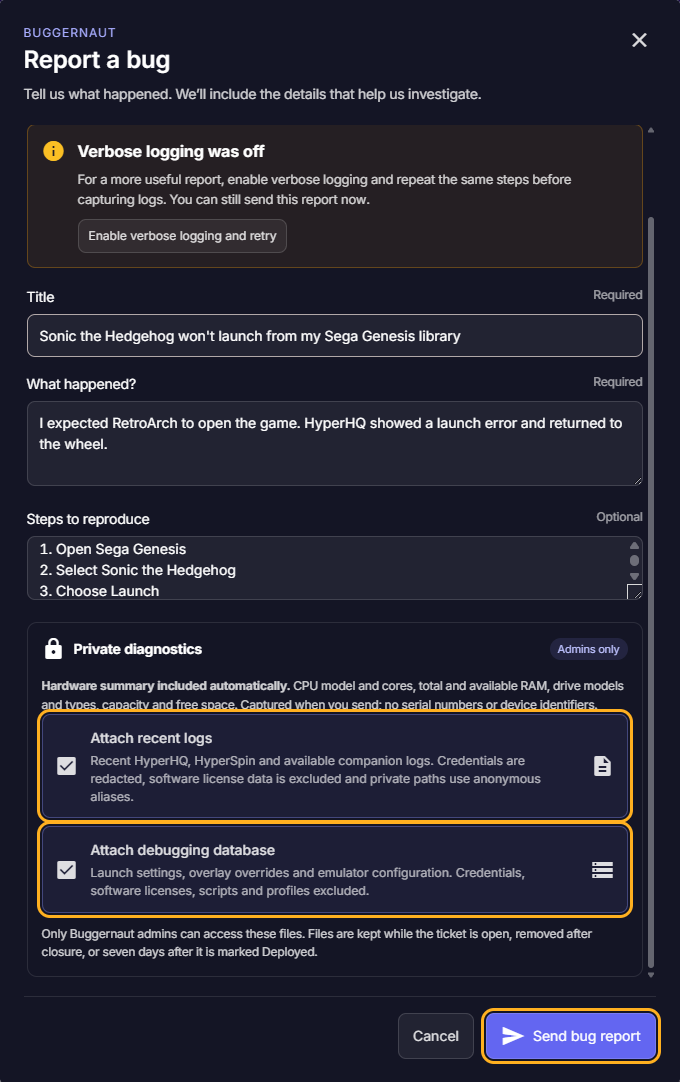
3. Attach logs and send
Scroll down to Private diagnostics. Leave Attach recent logs and Attach debugging database checked, then choose Send bug report.
HyperHQ confirms once the upload finishes. Choose View report to open your ticket on Buggernaut.
What gets sent
| Item | Sent | What's in there |
|---|---|---|
| Hardware summary | Always | CPU model and cores, total and free RAM, drive models, types, capacity and free space. No serial numbers or device IDs. |
| Recent logs | Your call | Recent HyperHQ, HyperSpin and companion app logs. Credentials are redacted, license data is left out and private paths are swapped for anonymous aliases. |
| Debugging database | Your call | Launch settings, overlay overrides and emulator configuration. Credentials, software licenses, scripts and profiles are left out. |
Only Buggernaut admins see your attachments. Files stay while your ticket's open. They're deleted when the ticket closes, or seven days after the fix is marked Deployed.
If the send fails
- "Your sign-in expired": sign in again, then choose Send bug report. Your draft stays put.
- "Report created" plus an upload error: your ticket exists, but the files didn't upload. Choose Retry diagnostic upload.
For other problems, see Troubleshooting.